
Command palette
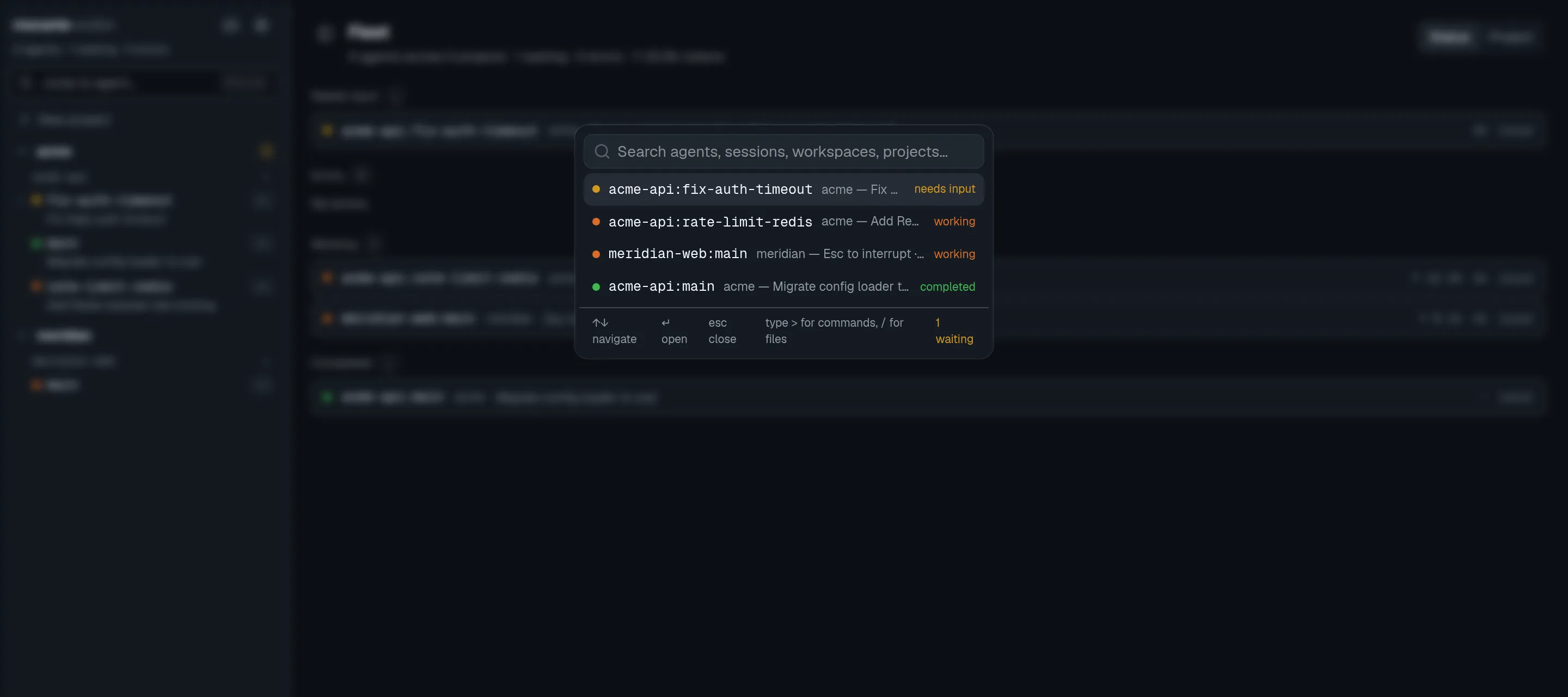
The command palette is the fastest way around mocante. Press ⌘K (Ctrl+K
on Linux) to jump to an agent, run a command or open a file without the mouse.
Every action in the app’s menus is also in the palette.
Open the palette
Section titled “Open the palette”| Keys (macOS) | Keys (Linux) | Opens |
|---|---|---|
⌘K |
Ctrl+K |
The palette, with your agents listed |
⌘⇧P |
Ctrl+Shift+P |
The palette with > typed, to run a command |
⌘P |
Ctrl+P |
The palette with / typed, to open a file (code pane only) |
You can also click the search field under the mocante name at the top of the sidebar.
⌘P works only while the code pane has the keyboard, because a shell uses
Ctrl+P for its history.
Choose what to search
Section titled “Choose what to search”The first character you type decides what the palette lists:
| Type first | Lists |
|---|---|
| anything else | Your agent tabs, waiting ones first. With a query, also sessions, workspaces, projects and views. |
> |
Every command the current view offers, grouped by category. |
/ |
The files of the session’s worktree, changed files first. |
? |
These prefixes. Pick one to type it. |
Delete the prefix to go back to the agent list.
In file mode, ↵ opens the file. ⌘↵ opens it in a tab that stays open.
Jump to an agent
Section titled “Jump to an agent”Open the palette and start typing. With an empty query, the agents are in
status order: needs input, error, working, completed, idle. Pick one with ↵
to open its tab, with the keyboard in its terminal.
Run a command
Section titled “Run a command”Type > and part of the command’s name. Matching is fuzzy, and it also
matches a command’s category and a few keywords, so pr finds Create pull
request… and git finds Show context panel. Matched letters
are highlighted. When nothing matches well, the palette says so instead of
listing weak matches.
With an empty query, the last commands you ran show first under Recently used. Each row there has a control to remove it from the list. A command you ran recently also wins ties when you type.
Commands appear only where they apply. For example, the git commands show when the session is in a git workspace, and Resume agent shows when the tab’s agent left a conversation. A command that would do nothing, such as Move left on the first tab, is left out.
The palette groups commands by category: Go to, Session, Tab, Agent, Terminal, Git, Code, Browser, Servers, Workspace, Project, Hosts and App. The keyboard shortcuts page lists the commands that have a chord.
Pick from a list
Section titled “Pick from a list”Some commands need a second choice. The palette then shows a list in place of
the commands: type to filter, ↵ to pick, and ⌫ on an empty field or Esc
to go back.
| Command | You pick |
|---|---|
| Switch session in this workspace… | a session of this workspace |
| Start session on branch… | a local branch |
| Open changed file… | an uncommitted change, to open its diff |
| Open commit… | a commit, to open its diff |
| Delete branch… | a branch that is not in use |
| Edit host… | a host |
| Trust a host’s new identity… | a host whose identity changed |
| Adopt session… | a tmux session that mocante does not manage yet |
| Install agent hooks… | an agent on a connected host |
Click the session name in the terminal header to open Switch session in this workspace… directly.
Close the palette
Section titled “Close the palette”Esc clears what you typed. Press it again on an empty field to close the
palette.
After a command runs, the keyboard goes back to where it was. A command that
opens a dialog leaves the keyboard in the dialog, where ↵ submits and Esc
closes.