
Fleet view
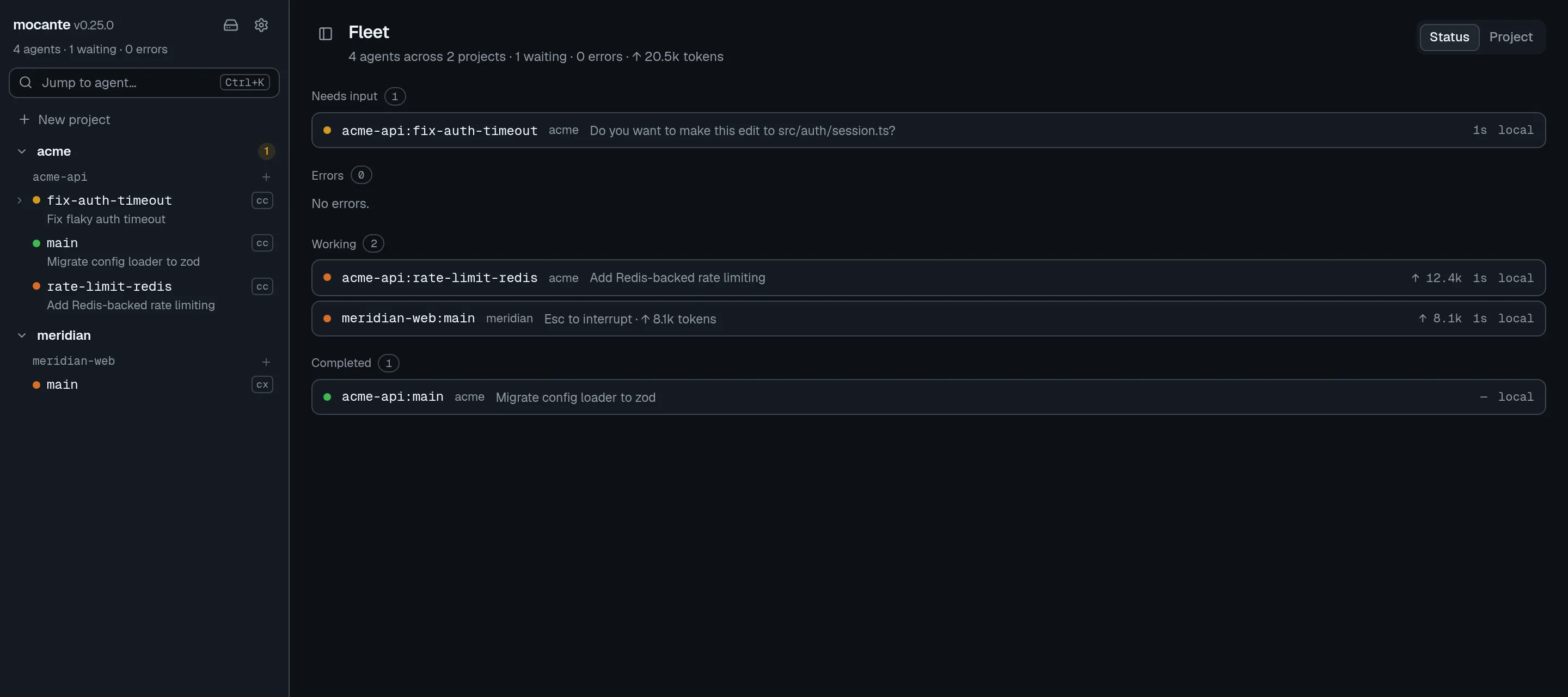
The fleet view shows every agent you run, on every host, in one list. Use it to find the agents that wait for you, then jump straight into the right tab.
Open the fleet view
Section titled “Open the fleet view”- Click the summary line under the mocante name at the top of the sidebar
(for example
4 agents · 1 waiting · 0 errors). - Or open the command palette (
⌘K) and pick Fleet overview.
The line under the Fleet heading counts your agents, projects, waiting agents and errors. It also shows how many agents are offline and the total token count, when there are any.
Read a row
Section titled “Read a row”Each row is one agent tab. A session with no agent shows its first tab. A row shows:
- a status dot;
- the workspace and session, and the tab title for an agent that was detected in a shell;
- the project, when you group by status;
- what the agent is doing: its pending prompt when it needs input, the error line when it failed, otherwise its current task or last line of output;
- the token count, the runtime and the host.
Click a row to open that tab. Right-click a row for the tab’s actions.
Group by status or by project
Section titled “Group by status or by project”Use the Status and Project switch at the top right of the view. The palette has the same choice as Group fleet by status and Group fleet by project.
- Status puts the agents that need you first: Needs input, then Errors, Working, Completed and Idle. The first two sections always show, so an empty Needs input tells you that nothing waits on you.
- Project makes one section per project, in sidebar order, with the agents sorted by status inside it. Agents outside any project go under No project. Click a project name to open the project.
The statuses are explained on the agents page.
Warnings at the top
Section titled “Warnings at the top”The fleet view shows a warning line, with a View hosts button, when:
- a host is unreachable. Its agents drop out of the list and are counted as offline. See remote hosts.
- the agent hooks on a host come from an older mocante. Status can lag until you update them. See keep hooks up to date.
Running dev servers also show on the fleet view.
Badges
Section titled “Badges”mocante counts the agent tabs that need input and shows the count in three places:
- The sidebar header shows the totals for all projects. Click it to open the fleet view.
- Each project header in the sidebar shows a badge with the number of waiting agents in that project.
- The dock icon of the desktop app carries the total.
Notifications
Section titled “Notifications”When an agent starts to wait for you and its tab is not on screen, mocante shows a desktop notification, Agent needs input, with the agent’s task or last line. Click it to open the tab.
mocante also notifies you when:
- a program rings the terminal bell in a tab you are not looking at (Bell in the tab name);
- an agent shares a file with you.
To play a short tone with each notification, turn on Notification sound in Settings, under Notifications. The palette command Turn notification sound on does the same.
In the web build, notifications come from the browser, so allow them when the browser asks.
Approve or deny from a notification
Section titled “Approve or deny from a notification”When Claude Code or Codex asks to run a tool and the tab is not on screen, the
desktop app shows a notification such as claude code asks to run Bash, with
the command or path underneath. It has an Approve button, with Deny
behind it in the button’s menu.
- Approve or Deny answers the agent. You do not need to open the terminal.
- Click the notification body to open the tab. The agent then shows its own prompt in the terminal.
- Close the notification to hand the question back to the agent’s own prompt.
If you go to the tab, or the tab is already on screen, the agent shows its own prompt as usual. The notification is a shortcut, not a gate. A request that nobody answers goes back to the agent after about five minutes.
Inside the app, a tab with a pending request also offers Approve permission and Deny permission in its right-click menu and in the palette.
Move between waiting agents
Section titled “Move between waiting agents”You do not need the fleet view to reach the next agent that needs you:
| Keys (macOS) | Keys (Linux) | Action |
|---|---|---|
⌘⌥⇧↓ |
Ctrl+Alt+Shift+↓ |
Next session that needs you |
⌘⌥⇧↑ |
Ctrl+Alt+Shift+↑ |
Previous session that needs you |
⌘K |
Ctrl+K |
Command palette, waiting agents first |