
Terminals and tabs
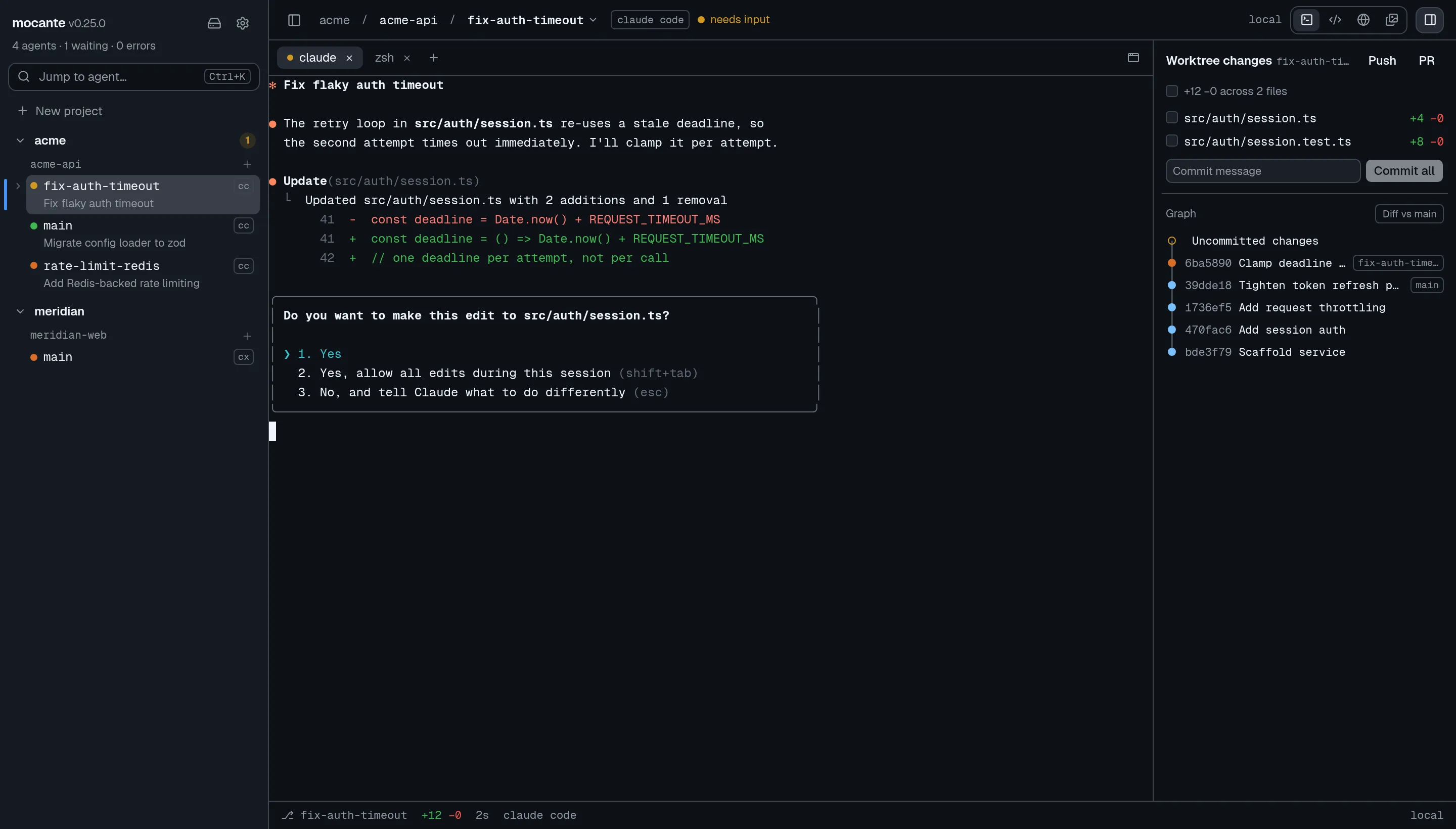
Every session in mocante is a tmux session, and every tab is a real terminal
in it. Full-screen programs such as agent CLIs, editors and htop work as in
any terminal, and your work keeps running when mocante is closed.
Sessions survive restarts
Section titled “Sessions survive restarts”tmux holds the session on the host, not mocante. You can quit the app, close the laptop or lose the SSH connection, and the programs in the session keep running. When mocante connects again, it shows the session as you left it.
To attach to a session from another terminal, right-click the session and pick Copy attach command, then paste the command into your own terminal.
A reboot of the host or a crash of the tmux server ends the sessions. An agent tab that had a conversation can then offer Resume.
Work with tabs
Section titled “Work with tabs”The tab strip above the terminal shows the session’s tabs. An agent tab has a status dot. A tab where mocante detected an agent in a shell has an auto badge.
| To | Do this |
|---|---|
| Open a shell tab | Click + at the end of the strip, or press ⌘T (Ctrl+T on Linux). |
| Close a tab | Click its ×, or press ⌘W (Ctrl+W). |
| Go to a tab by position | ⌘1 to ⌘9 (Ctrl+1 to Ctrl+9). |
| Go to the previous or next tab | ⌘⇧[ and ⌘⇧] (Ctrl+Shift+[ and Ctrl+Shift+]). |
| Rename a tab | Right-click it and pick Rename tab…. |
⌘W does nothing on the last tab of a session. To end the session, use
Close session… from the session’s right-click menu.
When you switch tabs, the keyboard moves into that tab’s terminal, so you can type at once.
Move between sessions
Section titled “Move between sessions”| Keys (macOS) | Keys (Linux) | Action |
|---|---|---|
⌘⌥↑ / ⌘⌥↓ |
Ctrl+Alt+↑ / Ctrl+Alt+↓ |
Previous / next session |
⌃1 to ⌃9 |
Alt+1 to Alt+9 |
Session by its place in the sidebar |
⌘[ / ⌘] |
Alt+← / Alt+→ |
Back / forward through places you visited |
The session name in the header opens a list of the other sessions in the same workspace. Switch session in this workspace… in the palette does the same.
Reorder tabs, sessions and projects
Section titled “Reorder tabs, sessions and projects”Drag to reorder. A line shows where the item will land.
- Tabs: drag a tab in the tab strip, or under its session in the sidebar. Or right-click it and pick Move left or Move right.
- Sessions: drag a session row to a new place under its workspace. Or right-click it and pick Move up or Move down.
- Projects and workspaces: drag a project header, or use Move up and Move down in the right-click menu.
The order of projects and sessions syncs to your other devices.
Rename a session
Section titled “Rename a session”Right-click the session and pick Rename session…, or pick it in the palette.
Copy, paste and links
Section titled “Copy, paste and links”- On macOS,
⌘Ccopies the selection and⌘Vpastes. On Linux,Ctrl+Cstays the terminal’s interrupt, so use the right-click menu to copy and paste. - The right-click menu also has Select all and Clear scrollback.
- Click a link in the terminal to open it.
- A program on a remote host can copy text to your clipboard (OSC 52). mocante never lets a program read your clipboard.
Shift+Enterinserts a new line in an agent’s prompt instead of sending it.
Pick a renderer
Section titled “Pick a renderer”mocante can draw terminals with one of two engines. Choose in Settings › Terminal › Renderer, or with Terminal renderer: xterm.js and Terminal renderer: Ghostty in the palette.
- xterm.js is the default. It draws text as page elements, which works best with screen readers.
- Ghostty runs Ghostty’s terminal parser and draws to a canvas. Try it if you prefer Ghostty’s behaviour, or if a heavy full-screen program feels slow.
The choice applies to this device only. When you switch, every open terminal reloads and its scrollback starts again from what tmux replays. No work is lost.
Also under Settings › Terminal:
- Font size sets the terminal text size. Open terminals change at once and keep their scrollback.
- Option as Meta (macOS only, off by default) makes
Option+key act asAltin terminal programs. Leave it off if you type characters such as@or{withOptionon your keyboard layout.
Adopt a tmux session you started yourself
Section titled “Adopt a tmux session you started yourself”mocante finds tmux sessions on each host that it does not manage yet, and lists them on the Hosts page under Unmanaged sessions found.
- Open the Hosts page from the sidebar header, or pick Adopt session… in the palette.
- Click Adopt… next to the session.
- Under Project, choose a project, or type a name to create one.
- Under Session name, keep the name or type a new one.
- Click Adopt session.
The session keeps running and its programs are not touched. mocante hides tmux’s own status bar in it, because mocante draws the tabs, and turns on mouse support. See also remote hosts.