
Git workflow
A session on a git workspace works in its own git worktree, so several agents can work on different branches of one repository at the same time. The git panel then takes that work from review to a pull request.
Start a session on a branch
Section titled “Start a session on a branch”A workspace is a git workspace when its folder is inside a git checkout. When you add a workspace and type the path of an existing checkout, mocante fills in the name and source from the folder and its origin remote.
- Open the workspace and choose New session….
- In Branch, PR or issue, type or pick what to work on:
- Type a new name, such as
feat/login, to create a branch. - Pick from Local branches to work on a branch you already have.
- Pick from Open PRs to check out a pull request. Type
#142to find one by number. - Pick from Issues to start from a GitHub issue.
- Type a new name, such as
- For a new branch, choose the Base it starts from. The default is the repository’s main branch.
- Select Start session.
mocante reuses a worktree that already holds the branch. Otherwise it creates one from the base branch, or from the pull request. The worktree folder is named after the branch: feature/login becomes feature-login.
A new worktree holds only tracked files. So that tools that read a local environment file still work, mocante copies the .env and .env.* files from the root of the source checkout into a new worktree. It never overwrites a file the worktree already has.
A plain folder that is not a git checkout has no branches. Its sessions share the folder and take an optional Name instead.
Start from an issue
Section titled “Start from an issue”When you pick an issue, the dialog shows its title, labels, people and the start of its body. It proposes a branch name the way GitHub does, such as 142-fix-flaky-auth-timeout. You can edit the name. An existing branch is reused.
The session remembers the issue. Its card and the terminal header carry a #142 badge that opens the issue. The session menu and the command palette offer Open issue and Paste issue to agent. Paste issue to agent types the issue’s title, link and body into the active terminal as a prompt.
Choose where worktrees go
Section titled “Choose where worktrees go”Open Settings → Git → Worktree location:
- Container folder (the default) puts each worktree in
<repo>-worktrees/<branch>next to the repository. Build tools that scan the repository do not see them there. - Beside the repo makes a
<repo>--<branch>folder next to the repository. - A directory in the field below gathers every worktree in one place as
<directory>/<repo>/<branch>. A~means the home folder on the host that owns the workspace.
A repository whose git config sets worktree.baseDir uses that value before these settings. The setting applies only to new worktrees. A worktree that already exists stays where it is.
Browse branches, pull requests and issues
Section titled “Browse branches, pull requests and issues”The workspace view has three tabs under its session cards:
- Local lists worktrees that no session runs in, and local branches without a worktree. Each row has Start session, and Delete worktree… or Delete branch….
- Pull requests lists open pull requests, newest first, thirty to a page.
- Issues lists open issues, most recently updated first. Issues assigned to you come first.
In the pull request and issue tabs, the search field searches GitHub. Type #142 to go straight to one number. Previous and Next move through the pages. Start session on a row opens a session on it, or Open session when one already runs on that branch.
Set up GitHub access
Section titled “Set up GitHub access”Pull requests, issues and badges come from the GitHub CLI, gh. It runs on the device where mocante runs, not on the host. So a workspace on a remote host shows its pull requests as long as gh is installed and logged in on your device.
When the tab cannot read GitHub, it shows the reason instead of an empty list, for example gh: command not found. Install gh, run gh auth login, and refresh the tab.
Pull request badges
Section titled “Pull request badges”A session card, a worktree row or a branch row whose branch is the head of an open pull request carries the pull request number as a badge. The terminal header carries it too, and it replaces an issue badge once a pull request exists. The number links to the pull request on GitHub.
Badges refresh when you open the workspace view, when you select the refresh button in the Pull requests tab, and when you create a pull request from the git panel. A pull request from a fork does not give a badge to a local branch with the same name.
Review changes
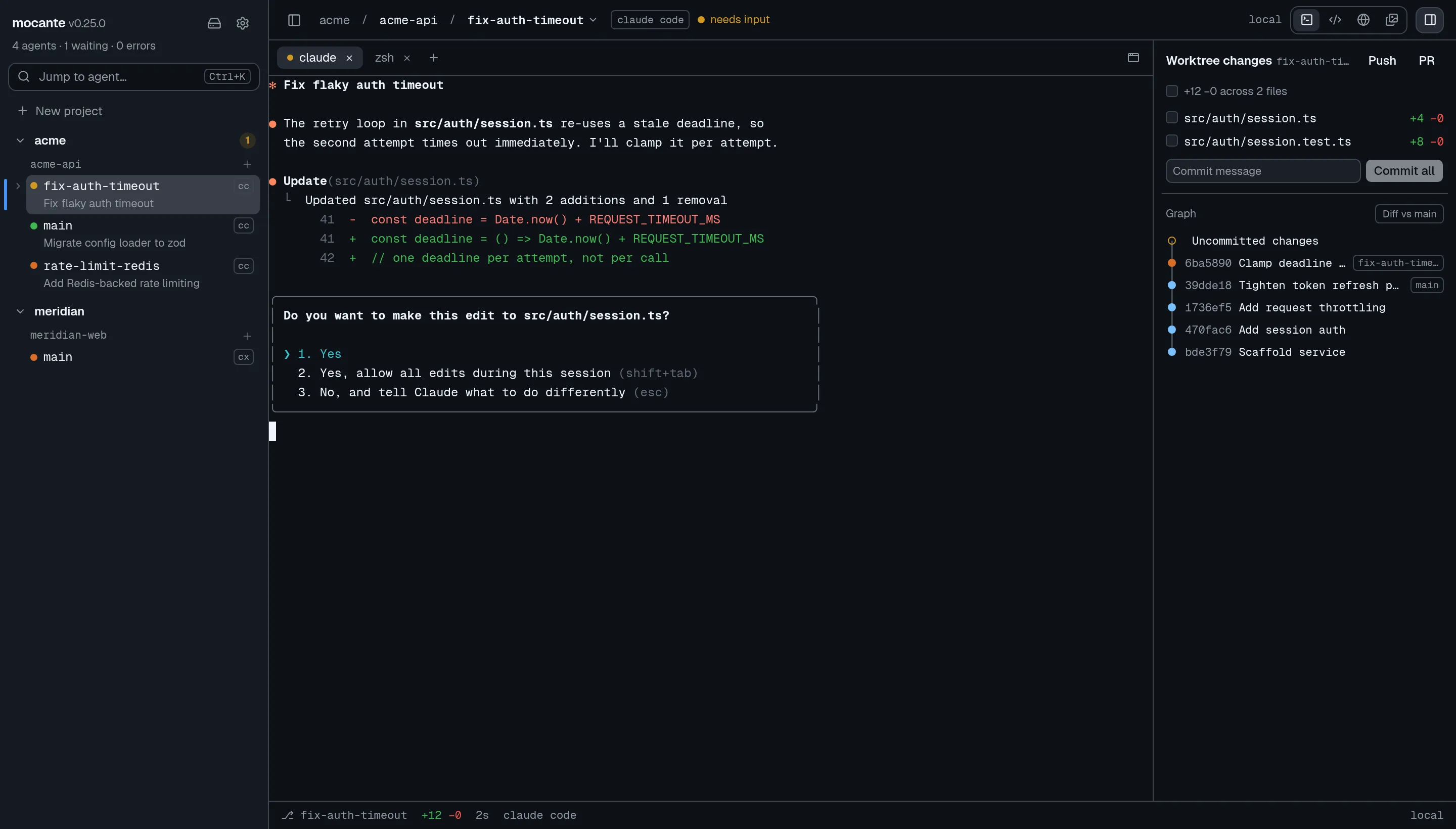
Section titled “Review changes”The git panel sits beside the session. Show context panel in the palette opens it. It shows:
- Worktree changes: the uncommitted files, with a count of lines added and removed.
- Graph: the commits of the branch, then the commits it shares with the base branch. More commits load as you scroll.
Select a file to open its diff in the code view. Select a commit to see its files, each diffed against the parent. Shift-click a second commit to see the whole range as one change. Diff vs main (named after your base branch) shows everything the branch changed since it forked. The palette has the same as Open branch diff, and Open commit… and Open changed file… pick from a list.
The button that shows the code pane carries a green dot while the worktree has uncommitted changes.
Stage and commit
Section titled “Stage and commit”Each changed file has a checkbox that mirrors the git index:
- Checked: the whole change is staged.
- A dash: part of it is staged, for example a hunk you staged in the terminal.
- Empty: nothing is staged.
Select the checkbox to stage or unstage the file. The checkbox in the summary line stages or unstages everything. Because this is git’s own index, the terminal and any other tool see the same state.
Type a message in Commit message and press Enter or select the commit button:
- Commit staged commits what is staged.
- Commit all appears when nothing is staged. It stages every change first.
When a commit fails, for example because a pre-commit hook rejects it, git’s output shows in the panel.
Push and open a pull request
Section titled “Push and open a pull request”- Select Push beside the branch name. A branch without an upstream is pushed to
originand set to track it. - Select PR, or run Create pull request… from the palette.
- Check the title, the description and the base branch. They are filled in the way
gh pr create --fillwould fill them. A session started from an issue gets aCloses #142line, so merging closes the issue. - Select Create pull request. mocante pushes, creates the pull request and opens it in your browser.
Push and pull request errors, such as missing credentials, a missing remote or a missing gh, show in the panel.
Sign commits on a remote host
Section titled “Sign commits on a remote host”Commits and pushes from the git panel on a remote host use your normal ssh connection to that host. If your ~/.ssh/config forwards your ssh agent to the host, for example a 1Password agent, a commit made from the panel can be signed with your local key, as git commit -S would be in a terminal.
Related
Section titled “Related”- Code view for reading and editing the diffs.
- Remote hosts for workspaces on another machine.
- Settings for every option in Settings → Git.